/ ENGINEERING SYSTEMS
BrowserSetu 0.3.3 · build 12 · Release candidate

Your browser.
Your way through.

Native on Mac, iPhone, and iPad. Powered by system WebKit.
Your layouts, your profiles, your tools. A small Rust core underneath.

Mac: Apple silicon · macOS 14+ · iPhone & iPad: TestFlight invitation

Native SwiftUISystem WebKitRust & SQLiteNo browser analytics or telemetry
0.3.3 · BUILD 12

More control, from the first tab to the last download.

The current release adds resource profiles, recovery checkpoints and everyday tools. The README also documents on-device summaries on eligible Apple Intelligence devices. Most new screens still need hands-on device verification.

Tabs that fit the moment

Mute, sort, snooze and schedule tabs; nest groups, search across windows, or link scrolling and compare text in Mac split view.

Explore the details

A resource governor with reasons

Balanced, Performance, Memory Saver, Battery Saver and Custom profiles. Battery, heat and Low Power Mode can trigger saver behaviour. Active and protected tabs stay awake; WebKit page-process memory is not measurable by the app.

Explore the details

A way back to your session

Session Time Machine keeps address, title and layout checkpoints. Health reports page failures and browser-owned diagnostics; snapshots do not store page contents.

Explore the details

Search, speak, read

Search Everything includes saved articles, closed tabs and sessions. Voice search requires an on-device language model. Summarize This Page requires eligible macOS 26 or iOS 26 Apple Intelligence support; availability is explained in the app.

Explore the details

Know what a download contains

Speed, time left, low-disk warnings, SHA-256 copy and verification, completion notices, and folders by site or profile. Downloaded files never open automatically.

Explore the details

Inspect without guessing

Optional in-page console, WebSocket and failed-resource capture, local formatters and converters, and a Network workbench. Capture can be noticed by the page; request bodies, full debugger control and network throttling are unavailable.

Explore the details
Release notes and verification limits
THIS IS BROWSERSETU. THE REAL APP.

Built around
the way you browse.

A native start page, configurable layouts, visible protection, and tools for the pages worth keeping. These screenshots come directly from the running Mac app.

Sidebar & previews

Keep the thread. Find the tab.

Workspaces gather a whole context in one place. The sidebar can show pinned tabs, groups, a parent-and-child tab tree, stacks, and hover previews. Search across tabs, reopen a closed page, or restore a session without loading every tab at startup.
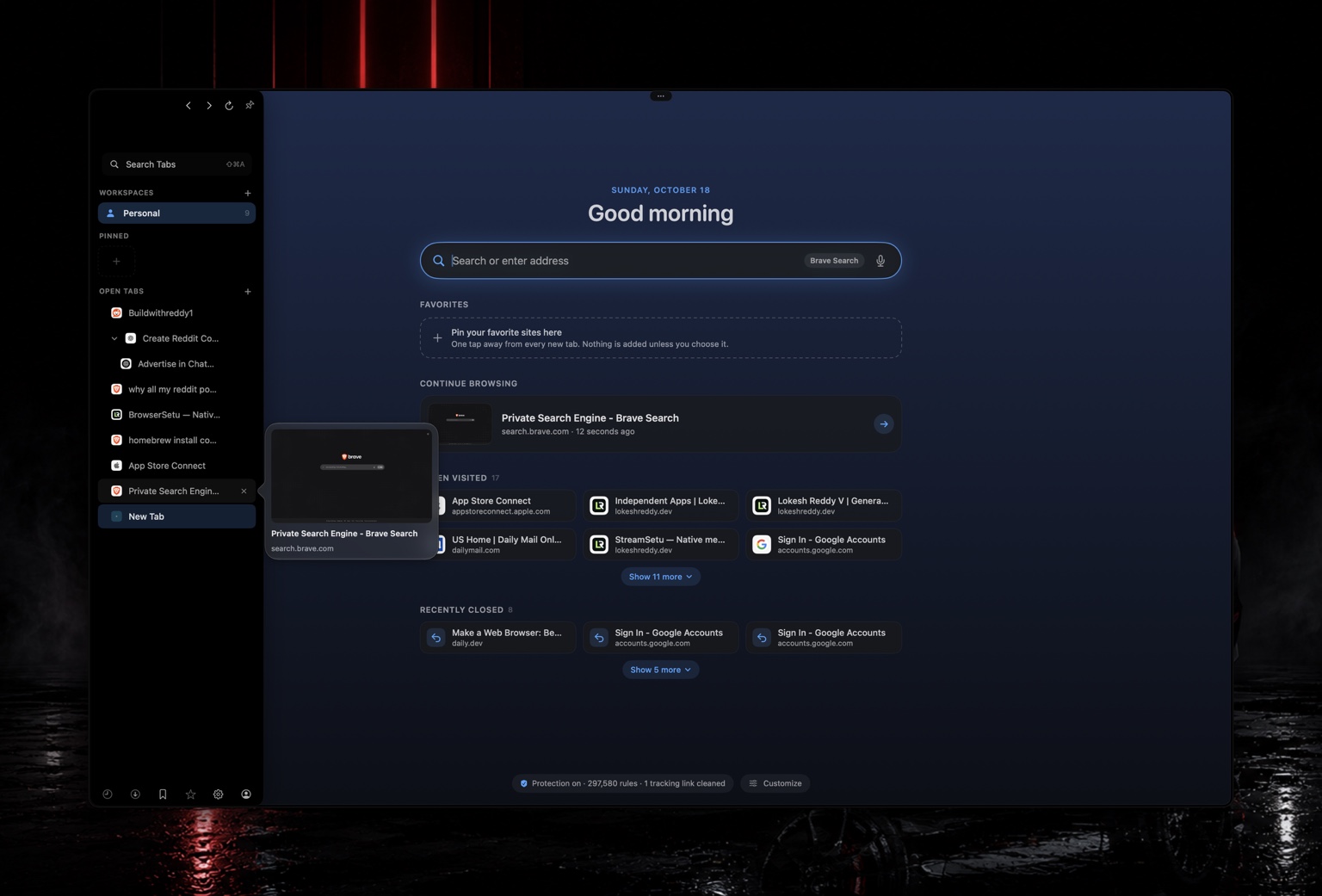
  • Workspaces, profiles, containers, and site-opening rules
  • Pinned tabs, groups, duplicate cleanup, tab notes, and saved sessions
  • Two-to-four-page split view on Mac; several windows and guest windows
BrowserSetu Mac with sidebar, Personal workspace, open tab tree and a hover preview beside its native start pageView real screenshot
Themes

Your theme. Across the whole window.

Choose Pure Black, a mood, a classic palette, or a custom theme. Schedule a day and night look, import and export colour-only theme files, and tune the accent. The native start page offers greetings, favourites, Continue Browsing, often-visited and recently closed pages, plus a Customize panel.
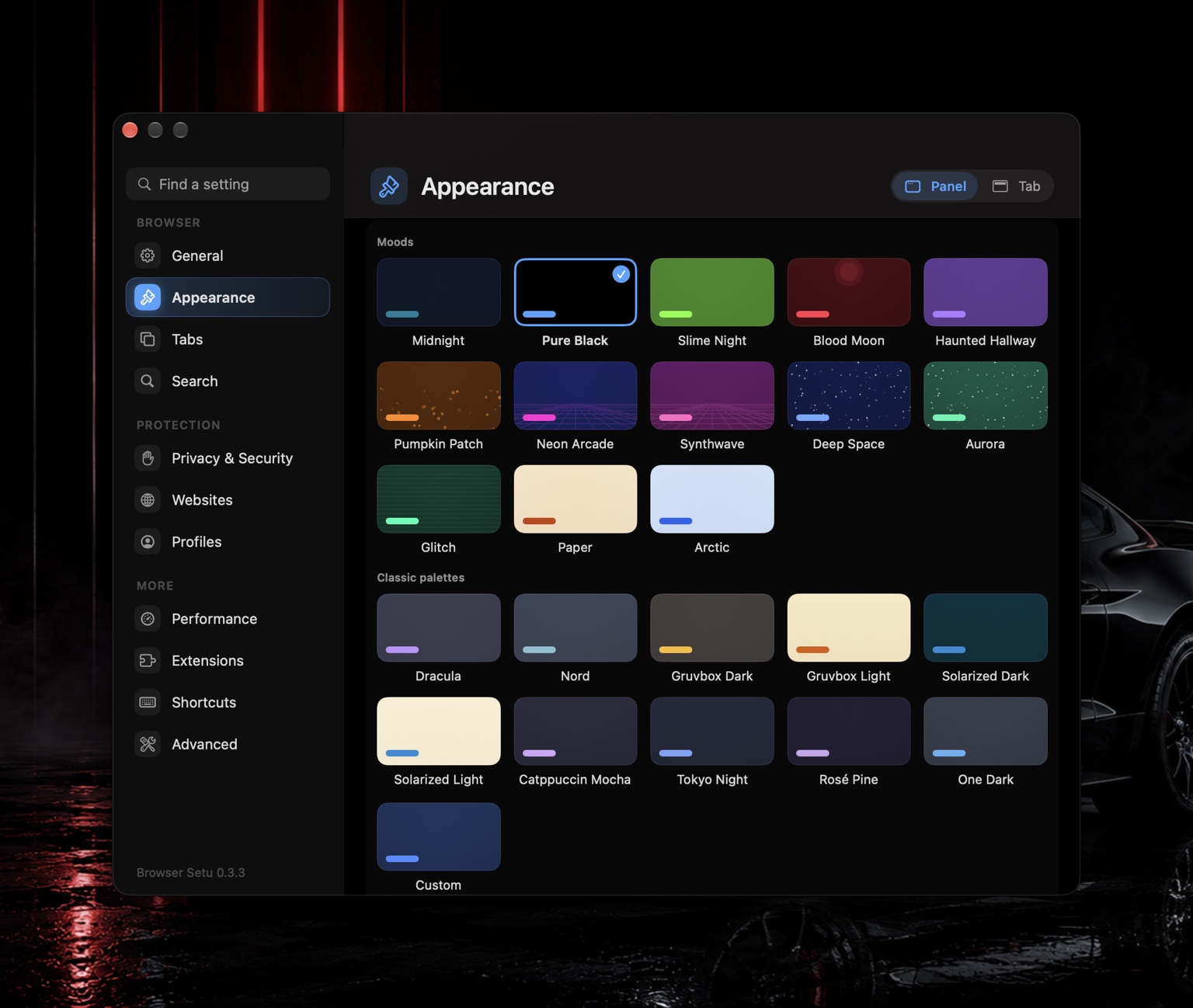
  • Classic, Sidebar, Minimal, Floating, One Row, and custom Mac layouts
  • Choose toolbar buttons and arrange sidebar/address-bar actions
  • Themes, density, start-page sections, search engine, and library-panel placement
BrowserSetu Appearance settings with Pure Black selected, colourful mood tiles, classic palettes and a Custom themeView real screenshot
Protection

Protection you can actually inspect.

The screenshot shows active VayuSetu content protection set to Strict. Light, Balanced, and Strict adjust blocking; Strict may break some sites. BrowserSetu uses WebKit rules, cleans tracking links, offers per-site controls, and separates private-tab storage. VayuSetu here is browser protection, not a built-in VPN.
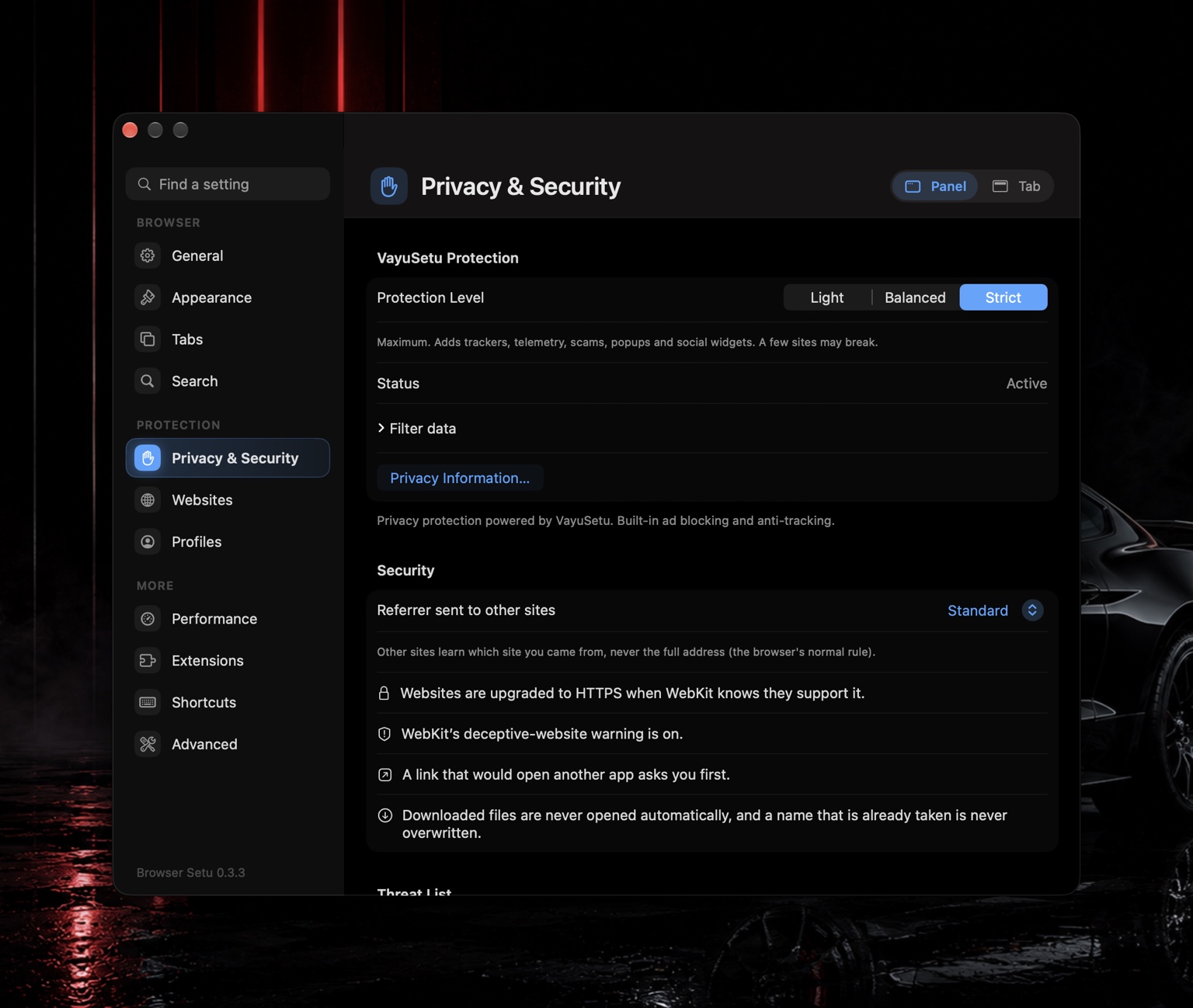
  • Per-site permissions, temporary grants, and a permission history
  • Private tabs exclude history, session restore, saved sign-ins, and extensions
  • No fabricated blocked-ad counts: WebKit does not provide an exact count
BrowserSetu Privacy and Security settings showing active VayuSetu protection at Strict level and WebKit security safeguardsView real screenshot
Startup & settings

Pick up where you choose.

Restore the last session with tabs loaded only when selected, or choose another startup behaviour. Set a native new-tab page, control the sections it shows, and open Settings as a panel or a tab. A first-run assistant introduces layout, search, privacy, and password choices.
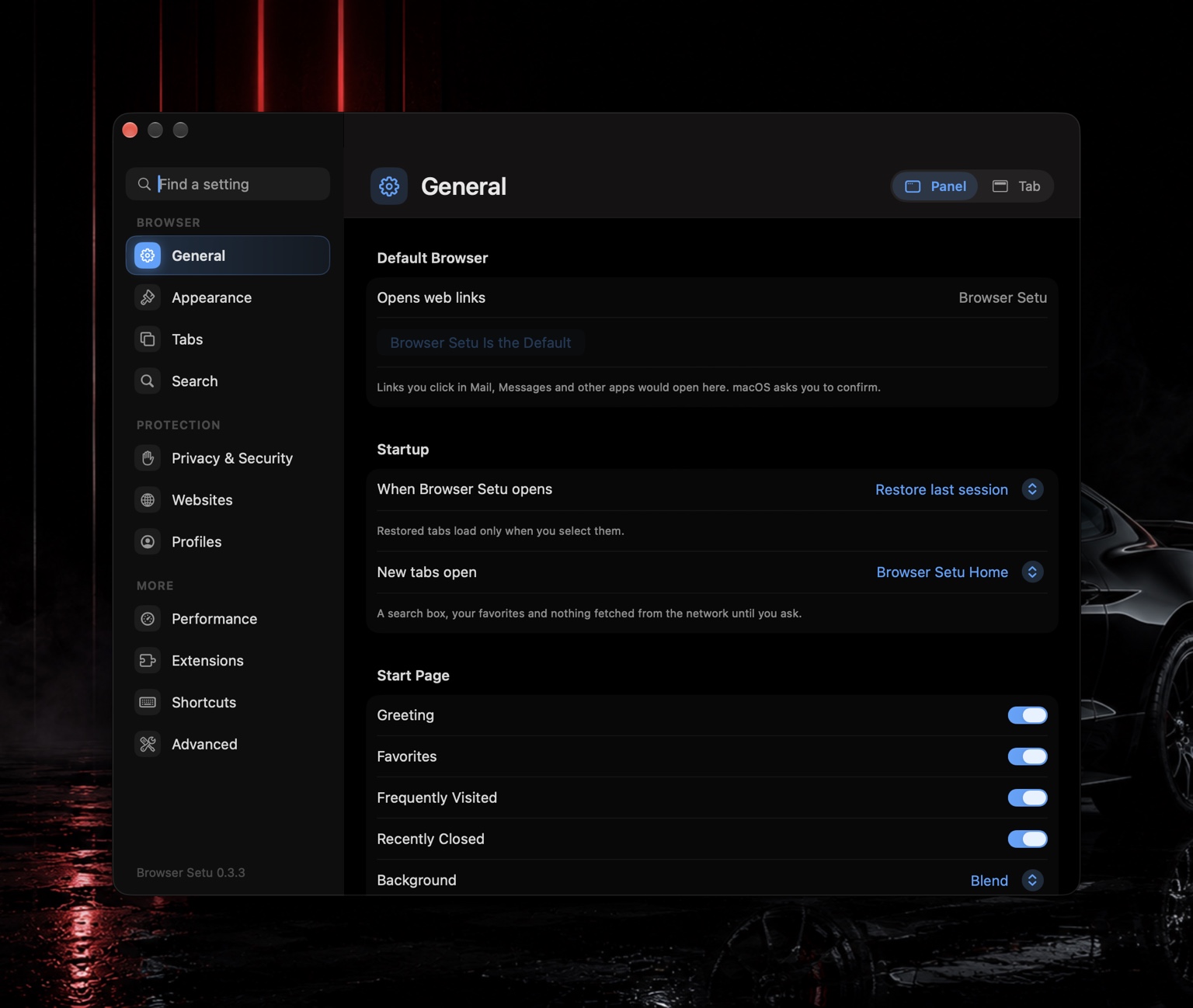
  • Balanced, Saver, and Performance memory modes; never-sleep rules
  • Memory pressure and thermal-state handling for eligible inactive tabs
  • The foreground tab and protected media/camera/microphone sessions stay awake
BrowserSetu General settings showing default browser, lazy session restoration, native new tab page and individual start-page controlsView real screenshot
SEARCH & COMMANDS

One place to get somewhere.

Local suggestions from tabs, bookmarks, and history; optional saved-page indexing; typo-tolerant search across tabs; a command palette, slash commands, calculator and unit conversions. Search-engine suggestions are off until enabled.

READING & RESEARCH

Keep the good parts.

Reader, offline reading lists, citations, collections, highlights, notes attached to passages, and Markdown/HTML/PDF export. Page Tools finds images, tables, documents, headings, detected details, and video controls.

PASSWORDS & DOWNLOADS

Useful tools. Clear limits.

Keychain-backed sign-ins with device authentication, imports, and an optional leaked-password check. Resumable download queues, file warnings, and a PDF editor with annotation, page tools, redaction, and drawn/typed signatures.

EXTENSIONS & WORKBENCH

Room to extend and inspect.

Permission-reviewed WebKit extensions, per-site access, update review and rollback tooling. Workbench provides page timings, a limited HAR export, storage inspection, an element picker, an isolated JavaScript scratchpad, and Web Inspector access.

Mac, iPhone, and iPad each have their own layout.

iPhone uses compact touch controls and a dock that folds while reading. iPad has a touch toolbar, tab chips, docked library panels, and external-keyboard shortcuts. Multiple windows, guest windows, split view, mouse gestures, and Workbench are Mac features. iPad keyboard behaviour, accessibility, real-device sync, and some extension flows still need broader validation.

THE COMPLETE FEATURE GUIDE

There is more
under the surface.

Explore every feature family, controls, platform differences, and practical limits documented in the project README.

01First minutes
  1. First launch asks a few questions (a one-minute setup): the look and theme, the layout, your search engine, which protections you want, and whether to offer to save passwords. Every answer applies at once and can be changed later; "Run Setup Again" is in the command palette.
  2. Open it. A blank tab shows the start page: a search field, your favorites, a card to carry on where you were, and places you go often. Type to search or enter an address.
  3. Press ⌘K for the command palette. Almost everything in this list is a command there, so you never have to remember where a thing lives.
  4. Choose a look in Settings › Appearance: a layout (Classic, Sidebar, Minimal, Floating, One Row), a theme, and the buttons you want in the toolbar. ⌥⇧⌘0 always restores the standard layout.
  5. Privacy is on from the first page. Ads and trackers are blocked, links are cleaned, plain-HTTP addresses are upgraded, and nothing leaves the device unless the table below says so.
02Layouts, windows and tabs
  • Layouts (Mac). Classic (tabs across the top, standard toolbar), Sidebar (tabs down the side, address bar in the sidebar), Minimal (one slim tab row), Floating (no bar: a pill shows the site, a search button opens the address bar, tabs slide in from the edge), One Row (tabs as icons beside the address field) and Custom. Each is a preset over a few switches (sidebar side, rail, auto-hide, single toolbar), so you can also set them one by one. A small handle appears whenever something essential would otherwise only show at a window edge.
  • Toolbar buttons (Mac). In Classic, Minimal and One Row you choose the buttons in Settings › Appearance › Toolbar: sidebar, back and forward, reload, share, bookmark, new tab, tab overview, downloads, workspaces, profile, split view, history, bookmarks, find and the command palette. The bar fits as many as the window is wide and drops the optional ones in a fixed order; the More menu always has the rest.
  • Tabs. Pinned tabs, groups with colours, drag to reorder, close with a middle click, tab overview with search and sorting, session restore with lazy loading, and Reopen Closed Tab. Give any tab a name, a colour or a note; see which tab opened which in a tree; group all tabs by website; find and close duplicates; open a scratch tab that keeps no history and leaves nothing behind.
  • Workspaces. Switch whole sets of tabs (Work, Research, Personal…) with the workspace button, the Workspace menu or the sidebar. Each workspace can have its own accent colour, its own layout (applied when you open it) and, if you like, its own set of extensions. Deleting one moves its tabs to Personal. Settings › Tabs lists them as rows with swatches.
  • Several windows (Mac). ⌘N opens another window; each has its own tabs, layout and workspace and they are all brought back at the next start. Right-click a tab › Move to Window, or drag a tab from one window's tab bar or sidebar onto another's: it moves with its page, history and place, and a window left with no tabs closes. File › New Guest Window (⌥⇧⌘N) opens private tabs only, keeps nothing and is not restored.
  • Split view (Mac). Two to four pages in one window: two share it exactly 50-50, three are one tall page with two stacked beside it, four are a 2×2 grid; or stack them instead of side by side. Start it from the Split View button in the toolbar, the Split View menu, the More menu, or right-click a tab › Open in Split View (then Add to Split View as a Panel). Drag the divider between two panels to resize them (double-click it to make them equal again), click a panel to make it the active one, swap panels or close the split from the same places. Every page in a panel stays loaded and is never put to sleep. Save the pair as a template to reopen it later.
  • Right-click everywhere (Mac). The sidebar (also when it hides at the edge), the toolbar, the tab strip, a new tab page and a link on a page each have a menu of their own: new tab, private tab, search tabs, new group or workspace, which sidebar section to show, its side, collapse to icons, auto-hide, layout, density, Break, Page Actions, and for a link Open in New Tab, Background Tab, Split View or Private Tab. Settings › Tabs › Right-Click Menus switches any item off.
  • Customize the buttons by dragging (Mac). Right-click the row of buttons at the foot of the sidebar › Customize Buttons: the row becomes editable in place, with a tray of the others above it. Drag one in, along the row to reorder it, or out to remove it. 18 are available (History, Downloads, Bookmarks, Reading List, New Tab, Find, Command Palette, Break, Split View, Timeline, Saved Sessions, Privacy Dashboard, Settings, Profile…); seven fit in the row, the rest sit under "…". The buttons inside the address bar are arranged the same way (right-click the bar › Arrange Buttons).
  • Tab tree, stacks and previews. Turn on the tab tree and a tab opened from a link sits under its parent, with an arrow that folds the branch; closing a parent moves its tabs up a level. Stacks put one website's tabs together in the sidebar, with a count that folds them. Rest the pointer on a tab for a preview card.
  • Web panels. Add a small https site (chat, notes, music) in Settings › Tabs; its icon sits in the sidebar footer and opens it as a card over the page's edge, with the browser's own protections (it is a hidden tab). One button turns it into a tab.
  • Settings as a panel or a tab. A switch in the Settings header chooses: its own window, or a tab with a gear in the tab list. It remembers your choice, including for ⌘, and the menu bar.
  • Drag and drop. A tab you drag shows a small glass card with its site, and the tab it will land before lights up. Drop a link on a tab to open it. Drag a tab to another window and it moves with its page.
  • Focus mode drops the toolbar and card for an edge-to-edge page.
  • Memory. Tabs you are not using give their memory back in Balanced, Saver or Performance mode, and the app tells you which tabs are asleep and why. A never-sleep list keeps chosen sites awake; Put all other tabs to sleep respects it. A sleeping tab keeps its title, address, history and scroll position and reloads when you open it.
  • Saved sessions keep the tabs, their pinned state, each page's place in it and the workspace; open one with /open or from the Library menu.
  • Containers keep one site's cookies and logins apart from the rest inside a profile, profiles keep everything apart, and site rules open a site where you want it (a private tab, a container, a group or a workspace) before it loads.
03Address bar, search and commands
  • One bar for everything. It suggests from your own open tabs, bookmarks and history first (computed on the device), then page text you chose to keep a searchable copy of, then your search engine (suggestions are off until you turn them on). The search-engine menu sits in the bar; add your own engine, and search shortcuts such as g cats or yt cats use one engine for one search.
  • Finishes addresses as you type (Mac). Type git and, if you have been to GitHub, github.com appears with the rest selected: Return goes there, any other key replaces it, Delete removes it. It completes only the start of a site you visited or bookmarked, and never once you have typed a space, a path or https://. (The iPhone and iPad fields cannot show a selected ending, so they suggest in the list instead.)
  • Search inside one website. Search This Site… (command palette, Library menu, or the ⋮ menu on a phone) asks what to look for and searches only the site in front, using your search engine's site: search.
  • Drop it on the window. A link, a file or some text from another app, dropped on the window, opens: a web link in a new tab, a file as a document (a PDF in the editor, anything else in the previewer), text as a search or an address. Dropped over the page itself, the page gets it first (so file uploads on websites still work); drop on the toolbar, the sidebar or the start page.
  • Reopen Closed Window (File menu, Mac) brings back the last extra window you closed, with its pages. The last five are kept for this run of the browser; private tabs and guest windows are never kept.
  • Pages behind and ahead. Right-click (Mac) or press and hold (iPhone, iPad) Back or Forward to see the pages behind or ahead of this one, up to fifteen each way, and jump straight to one.
  • Answers. Type a sum (12 * (3 + 4), 15% of 80, sqrt(2)) or a conversion (5 km to miles, 72 f in c, 1 gb to mb) and the answer appears under the first row; Return copies it. Worked out on the device, no currency.
  • Slash commands. /tabs, /close, /find, /group, /sleep, /duplicates, /save, /open, /workspace, /forget, /private, /scratch, /note, /split, /restore: type a slash to see them, each explained as you type. Nothing runs until you press Return.
  • Search across all open tabs (⇧⌘F, or /find) reads the text of every loaded page and finds tabs that are asleep through the saved copy of pages you read. It forgives typos ("kuberntes cluser" finds "Kubernetes cluster"), lists exact matches first and marks close ones "similar", and switching to a result finds the words in the page.
  • Command palette (⌘K). Every command, every open tab, bookmarks and settings in one list; type > in the address bar for the same. Workbench › Search searches tabs, bookmarks, history, downloads, research and notes together.
  • Vim keys (optional). j, k, gg, G, H, L and more, with an editable keymap. They act only when no text field has the keyboard.
  • Mouse gestures (Mac, off by default). Hold the middle button and drag: left is back, right forward, down a new tab, down then right close, up scrolls to the top, and so on. The map is editable in Settings › Advanced. A middle click that does not move still opens a link in a new tab.
  • Selection actions. Select words and search them with any engine from the command palette or Selection Actions…, which also shows details found in the selected text.
  • Address bar sources and buttons. Settings › Search › Address Bar Results chooses which results show under the bar (search suggestions, open tabs, bookmarks, history, saved pages, commands) and in what order; "Go to…" and "Search for…" always stay first. Command chains (Settings › Advanced) run several palette commands as one, and show up in the palette. Break pauses all media in every tab at once.
04Keyboard shortcuts

Every one can be changed in Settings › Shortcuts. The defaults:

New tab / private tab / close / reopen⌘T / ⇧⌘N / ⌘W / ⇧⌘T
Open location / command palette / paste and go⌘L / ⌘K / ⇧⌘V
Back / forward / reload / stop⌘[ / ⌘] / ⌘R / ⌘.
Next / previous tab / select tab 1–9⇧⌘] / ⇧⌘[ / ⌘1–⌘9
Find / next / previous⌘F / ⌘G / ⇧⌘G
Find in all tabs / search tabs / tab overview⇧⌘F / ⇧⌘A / ⇧⌘\
Bookmark / bookmarks / history / downloads⌘D / ⇧⌘B / ⌘Y / ⇧⌘J
Toggle sidebar / focus mode / restore standard layout⇧⌘L / ⌥⌘F / ⌥⇧⌘0
Reader / share / print⇧⌘R / ⇧⌘S / ⌘P
Zoom in / out / actual size⌘+ / ⌘- / ⌘0
New window / new guest window⌘N / ⌥⇧⌘N
05Privacy and security
  • Content blocking. Ads, trackers and session-recording scripts are blocked with WebKit's content-rule engine at three levels (Light, Balanced, Strict). A small starter list ships in the app; about 90 public lists are optional downloads, fetched straight from their publishers only when you press Update (or turn on automatic updates, which is off by default). WebKit does not report blocked counts, so the numbers below are estimates.
  • The shield card (click the shield beside the address) holds the protection level, a Blocked count with a menu to choose what it covers (this page, today, 24 hours, 7 days, 30 days, 12 months, all time), a Protections list that says what is on and flips each switch, and Site not working?: pause blocking for 10 minutes, an hour or until you quit (it switches back by itself), or open Repair This Page. This site… opens switches for that one site (ads and trackers, pop-ups, autoplay, fingerprint noise, JavaScript, video speed, keeping its tab awake) and Protection History… shows a graph by day and the sites with the most blocks. The counts are estimates: WebKit does not report what it blocks, so a picture, script or frame that fails to load with no network record is counted as blocked, and a page that asks again counts again. Counts are kept on this device, per profile, in one small file; private tabs are never counted.
  • Cookie banners. Where a consent banner has a "reject" button for a common consent tool, the browser presses it; a banner left over is hidden and scrolling is given back. Nothing is accepted for you. On by default, one switch in the shield card's Protections list. Tested on built banners, not yet on live sites.
  • Cleaner links and pages. Tracking parameters are stripped from links (Copy Clean Link does the same); plain-HTTP addresses are upgraded to HTTPS; De-AMP sends links through Google's AMP cache to the site's own page, and replaces an AMP page that names its own full version.
  • No videos or sound starting by themselves (on by default). A page can start media only after a real tap or key press (and for six seconds after one, so the page you open by tapping can start its own player), not while you scroll. On the iPhone a second guard checks what is playing and pauses media that started with no tap in the last six seconds, whatever the page's script does. On a phone a scroll counts as a touch to WebKit, which is how a feed such as YouTube's could start videos as you scrolled. Playlists and "Autoplay next" wait for a tap, and a site that needs to play by itself (a voice-chat page, say) can be allowed in Site Privacy or with Repair This Page.
  • Fingerprint randomizing (off by default). Small, per-site changes to what canvas, WebGL read-back, audio and the processor count report, different for every site and every start, to reduce recognition through those signals; it does not cover every fingerprinting technique. Each site has its own off switch for the few pages that draw pictures.
  • Block ads on YouTube (on by default). The ad schedule is removed from a video's own data before the player reads it, so there is no ad to play; ad slots are hidden, and an ad that still starts is skipped, or muted and run to its end. The rules are plain data (names of fields and page elements, never code) and can be refreshed from this project's repository at most once a day while the switch and its update option are on (Settings › Privacy & Security); every name is checked and a file with anything unexpected is refused whole. YouTube changes this often, so it can stop working until the rules are updated, and it has been tested on a copy of the player's data, not yet on every live page.
  • Pop-ups. A window a page opens by itself is blocked, with a card at the top: Open Once, Always Allow, or dismiss. A window opened by a click or a key press (a sign-in, a payment) is allowed and stays connected to the page that opened it, so it can finish and close itself. Settings › Websites › Pop-ups lists the sites you allowed.
  • Per-site controls. JavaScript off for one site, never-sleep, zoom, notes, your own style sheet, a browser identity (user agent), WebRTC exceptions. A style sheet for every website applies CSS everywhere (hide a cookie banner, say), with a site's own sheet on top.
  • Private tabs use a separate, non-persistent store: no history, no session, no saved sign-ins, no extensions, no scripts of yours, and nothing in them is read by the browser's own tools.
  • Permissions. Camera, microphone and location are asked for per site: Allow, Allow for an Hour, Allow for This Session or Always Allow (which itself expires). A log shows who asked for what and what you said. Insecure pages are always refused.
  • Site privacy page (the lock beside the address, or the command palette): what the site stored (its cookies, third-party cookies by owner, storage), its permissions, how it sees you, how safe its connection looks (certificate chain, redirects, mixed content), and Forget This Site Completely. Automatic-deletion rules clear a site when its last tab closes or at every start.
  • Who is on the other end. The certificate is read for the organisation it names. A site whose certificate names a checked organisation shows that name beside the address (green); a certificate that only proves the domain says "Encrypted, owner not verified". The lock's tooltip and the site info popover say the same in full.
  • WebRTC switch (stops pages learning this device's network address), a proxy for page loads (HTTP or SOCKS5; it is not a VPN), a threat list of hosts you import (a warning before those pages load), and a download scanner that warns about risky file types and files whose contents do not match their name.
  • Sensitive-settings lock (Touch ID or password) in front of saved sign-ins, extension changes and similar; it refuses when the device cannot authenticate instead of opening.
  • Clear on quit, safe start after repeated crashes (tabs return but none loads), an in-app health check, and a privacy dashboard that shows what is on and what was cleaned.
06Passwords
  • Save and fill. After you sign in, the browser offers to keep the password in your Keychain, for this profile. It notices a sign-in sent by the form, by Enter, by a button or by the page's own script, including a sign-in box that is a page from another site inside the page (App Store Connect's and Google's are). As soon as you type a password a small "Save password?" card also appears, so a sign-in nothing noticed can still be kept with one click. Filling asks for Touch ID or your password, happens on the exact site, never over plain HTTP and never in a private tab; clicking into a password field offers your saved sign-in. Pages cannot send the browser anything but those two moments.
  • Keep passwords in iCloud Keychain (Settings › Websites). Moves your saved passwords into iCloud Keychain, which Apple seals end to end, so they appear on your other Apple devices with the same Apple Account. If this copy of the app cannot use iCloud Keychain it says so and keeps them on the device. Not yet checked between two real devices. A backup can also include them (tick the box when you export; the file is sealed with your passphrase).
  • Check Passwords for Leaks (Settings › Websites › Saved Sign-ins, behind Touch ID): each password is hashed on the device and only the first five characters of the hash go to haveibeenpwned.com, so no password, whole hash, site or user name leaves. It also flags a password used on more than one site. Nothing is stored from the answer.
  • Sign-in boxes that websites show (HTTP authentication) are remembered per site, realm and method.
  • Import passwords and history from Chrome, Firefox, Apple's Passwords and Safari (their exported files).
  • Limits. Browser Setu cannot use Safari's own saved passwords or its save prompt in a web view (Apple does not allow it for other browsers), and there are no passkeys yet (Apple must grant browsers the permission). A password manager's extension (Bitwarden, 1Password) is the other way, where its extension works in WebKit.
07Extensions
  • Web extensions through WebKit's own support (macOS 15.4 or later, and iOS 18.4 or later). Add from a folder, a .crx or .zip, or a Chrome Web Store address. Every install shows what the extension asks for, warns about what Apple's support does not offer, and installs from a private copy that is hashed before and after, so what you approved is what runs.
  • A permissions screen per extension: switch any permission off, restrict to "on click", specific sites or all sites, and see a history of changes. Per-site allow and block rules; pin extensions to the toolbar.
  • Tools: conflict detection (shortcuts, request blocking, restyling, new-tab pages), presets (Cautious, Balanced, Open), what changed in the last update, go back to the previous version, per-workspace extension sets, a throwaway-profile load test with a score, and a backup of the installed files.
  • Limits. VPN and privacy-API extensions cannot work (WebKit has no proxy or privacy APIs). Native messaging (password managers' helper programs) is written but switched off until Chrome package signatures are verified. Real Dark Reader, uBlock Origin Lite, Vimium and Bitwarden/1Password packages were fetched for a compatibility report (`docs/extension-compatibility.md`): "loads" is not "works", and password managers have not been tried end to end. On iPhone only one sample extension was tried.
08Reading, research and page tools
  • Video speed and picture-in-picture. Choose 0.5× to 2× from the command palette, the Library menu (Mac) or the ⋮ menu (iPhone, iPad); the speed is remembered for that site and put on every video it shows, including ones that appear later. Picture in Picture opens the biggest video in a floating window (not tested on a real video).
  • Summarize This Page. A few lines written by the language model that is part of macOS 26 and iOS 26, on this device (Apple Intelligence). The page text is never sent anywhere. Where a device cannot run the model, the sheet says why.
  • Reader (⇧⌘R) for clean text, a reading list with offline copies, highlights and page notes, and "restore what I was typing" for forms.
  • Research collections. Save pages, highlights (each with a citation: title, address, author, dates), notes and PDFs; save an offline PDF copy of a page; add a note anchored to a selected passage and jump back to it; export to Markdown, HTML or PDF; copy a citation as plain text.
  • Page Tools (Library › Page Tools): Images (save, copy), Tables (export as CSV), Documents (links to files), Outline (jump to a heading), Details (dates, phone numbers, addresses found in the text, with a system detector), Video (speed, Picture in Picture, full screen), Text, Versions and Listen (the page read aloud with the system voice, following along on screen).
  • Page versions and price watch. Keep a page's text and see what changed on your next visit, with price-drop detection and scheduled checks.
  • Search My Pages. Optionally keep a searchable copy of the pages you read (on the device, never from private tabs); it feeds the address bar and the all-tabs search.
  • Shopping. Compare products, keep coupons, and track subscriptions with the monthly and yearly cost.
  • Also: text from pictures (Vision, on device), translate a page on the device, a QR code for a page, Repair This Page (infinite-scroll and broken-layout helpers), remember where you stopped reading, and Request Mobile Website.
09Downloads, PDFs and documents
  • Library panels. Bookmarks, History and Downloads share one design: a heading with a count, a search field, filter chips with counts (Favorites and Tagged; Today to All; Documents, Images, Media, Archives, Apps), sections as cards that fold, rows that light up under the pointer, and a proper empty state. Downloads shows progress rings, a queue bar (pause all, hold until a time) and Resume for interrupted files; History clears the last hour, today or everything.
  • Short messages ("Filled in.", "Password saved.") appear as a card that fades by itself, not a box to click away.
  • Downloads you can see. A card at the foot of the window shows progress while a file downloads, the Downloads button fills a ring and the Dock icon shows the percentage; when it finishes a card says "Downloaded" with Show in Finder and All Downloads (a file that can run code carries its warning in the same card instead of a box you have to dismiss).
  • Download details. Each running download shows size, speed and time left ("48 of 78 MB · 6.1 MB/s · about 5 s left"). A finished file has Copy SHA-256 and Verify Checksum… (paste the hash the site published; the answer says match or no match). A warning appears before a download that would not fit in the free disk space, a banner tells you when one finishes while the app is in the background (Settings, can be turned off), downloads can be sorted into a folder per website, and "Copy Download Diagnostics" in the Downloads panel copies the folder, free space, queue and recent events for a bug report.
  • Security events. The Privacy dashboard lists what Browser Setu did to keep you safe (pop-ups stopped, a page that bounced through four or more different sites, risky file types downloaded, blocking paused for a site), newest first, next to the permission log. Private tabs are not recorded.
  • Extensions, safer. The approval sheet adds a red "Be careful" list for broad access (every website, cookies, history, downloads, network requests). Relaunch Without Extensions (File menu), holding Option while opening the app, or the -BrowserSetuNoExtensions YES launch argument starts with all extensions off to find one that breaks pages.
  • Already there: WebKit's own fraudulent-site warning (on by default) and macOS file quarantine for downloads (LSFileQuarantineEnabled on the Mac app).
  • Downloads. Resumable, with a queue (priorities, hold until a time, pause and resume all, retry with back-off) that survives a restart, an optional sort into folders by kind, rules by site and kind, a duplicate finder, preview, share and reveal in Finder. A page's own "Download" button that hands over a data: or blob: file works: it is saved, never run as a page. Progress shows on the Dock icon.
  • PDF editor. Open a downloaded or chosen PDF: highlight, draw, type, add shapes; rotate, delete, reorder, extract and merge pages; sign with a drawn, typed or picture signature kept in the Keychain behind Touch ID; redact (the words are removed from the file, not just covered); save a password-protected copy. A signature is a picture or text placed on the page, not a certificate-based digital signature.
  • Other documents (Word, Excel, Pages…) open in a preview. Take a picture of the page (visible part or the whole page), or save it as a web archive.
10Tab scheduling, groups and lifecycle

Tabs, more. A speaker shows on a tab that is playing sound (click it to mute; the page's players stay silent after reloads; sound made through Web Audio is not covered). Tabs can be sorted by website, title or last use (pinned stay first), snoozed (an hour, this evening, tomorrow, next Monday) or scheduled to open again daily, on weekdays or weekly (they open while the app runs, or at the next launch). Groups nest ("Work/Project A" via New Subgroup…), fold, and can be searched; a group can be saved as a session. Idle groups (unused 30 minutes) can be put to sleep, pinned tabs ask before closing (a setting), and the tab search (/tabs) finds tabs in other windows and brings them over. Not built: a per-tab memory number (the system does not report one; the Resources view shows awake or asleep and last use instead) and automatic detection of tabs "using too much".

11Resource governor and battery modes

Resource governor. Profiles: Balanced, Performance, Memory Saver, Battery Saver and Custom (how many recent tabs stay live, how long a tab may sit idle). Balanced switches to Battery Saver by itself in Low Power Mode, below 20% battery unplugged, or when the device runs hot (a setting; the reason is shown). Tabs playing sound, locked, pinned, on a never-sleep site, loading or in use are never released. Battery Saver also checks sound and scheduled pages less often, stops refreshing tab thumbnails, and automatic filter-list updates wait on a metered or Low Data connection. The Resources view shows the profile in force, free memory, power, connection, this app's processor use and an energy estimate, start-to-first-page timing against earlier launches, and "Free Memory Now". Restored tabs load only when opened. Limits: WebKit's page processes cannot be measured, throttled or tuned from an app, so processor use and energy cover Browser Setu itself, and there is no per-tab memory number; lifecycle control works by releasing tabs and trimming browser-owned caches.

12Per-page protection and network boundaries

Privacy detail for the page in front. The shield's "This site" panel now opens with: HTTPS or not, blocked requests (with a by-site list and an ads/trackers estimate guessed from host names, since WebKit does not say which list blocked a request), how many other sites the page loaded from (and which), cookies stored from other sites, WebKit's cross-site tracking restriction, and what is switched off for the site. Settings › Security has Referrer sent to other sites (Standard, or only within the same site; a page's own policy on a link still wins, and a few sign-in or download flows may need an exception). Import a List… in Custom Rules reads a hosts file, an Adblock-style list or plain domains and blocks each whole domain (path, element and exception rules are skipped). Already there: ad and tracker blocking, HTTPS upgrades for known hosts, tracking-parameter removal, fingerprint noise, private tabs, auto-cleanup, per-site settings, element hiding, cookie banners, storage inspection and deletion, and the Today / 7 days / 30 days / All time counts.

13Profile tools and temporary profiles

Profiles. Each profile has its own database (history, bookmarks, permissions, home page, search engine, appearance, extension settings) and its own WebKit data store, so cookies and site storage are not shared (this uses WebKit's per-identifier data stores, macOS 14 / iOS 17 and later). New: an icon and a colour per profile, Open This Page in Profile and Open in Profile (the window switches, your tabs come back when you return), Always Open this site in… (the address bar offers to switch when a site belongs to another profile), Copy Its Bookmarks Here, downloads in a folder per profile (a setting), and a Temporary Profile that is deleted when you leave it or quit. Moving a profile is the encrypted backup: back up, switch, restore. It carries bookmarks, settings and, if you choose, passwords, but not cookies, site sign-ins or history. A guest window (private tabs only) already existed. Not built: choosing a profile from a link's right-click menu (use the tab or profile menu), and links from other apps always open in the current profile.

14Media controls and sleep timer

Media. Page tools › Video lists every player on the page with: what is playing (the page's media-session title and artist, else its title), picture size and dropped frames, play/pause, speed (remembered per site), mute, subtitle and caption choice, Pop Out (Picture in Picture), full screen and an AirPlay/output picker where the page allows it. It also shows what is playing in other tabs (pause, mute, go to the tab, pause everything), a sleep timer (15 to 90 minutes, pauses media in every tab), and Recently Played (pages that played media in normal tabs; off switch and clear). Already there: failure explanations and a device capability check, autoplay blocking, a per-tab speaker/mute, Break Mode, Picture in Picture and background audio on iPhone. Media keys, Control Centre / lock-screen controls and the system Now Playing entry are WebKit's own handling of a page's media session, not something this app draws, and protected (DRM) video decides for itself what it allows; Pop Out and AirPlay are refused by some services. Audio output on a Mac is the system's output device; the page-level picker is AirPlay only. Not built: a floating mini-player of our own (use Picture in Picture), and volume memory per site.

15Reader style, offline articles and citations

Reading. The reader has its own look in Settings: font (serif, sans, rounded, mono: the system's own), size, line and letter spacing, width and background (match system, light, sepia, dark, black), plus Larger/Smaller Text in the menu and palette. Saved articles open offline, remember how far you read (and reopen there), can be searched by title, site, highlights and full text, and can be highlighted; Copy Citation (APA, MLA or plain; the author and date are not known to the browser, so the site and "n.d." stand in) and Copy Highlights with Citation are in the menu. Translation checks the page's language first (on this device) and says if it is already in yours; Translate Selected Text and Detect Page Language use the same system. Already there: read-aloud with a following highlight, find in page with highlighted matches, reduced-motion and high-contrast support, scaled fonts. Not built: custom font files (only system fonts), highlights on ordinary web pages (only saved articles and PDFs), and per-highlight notes. Much of the app's own chrome uses fixed sizes, so system Dynamic Type affects only the parts that were built to scale.

16Start page and on-device voice search

New tab page. The start page is native (no web view is used to draw it): a search box with suggestions (Settings › Search can turn the remote ones off), your favorites (add, edit, drag to reorder, remove), recently closed, often-visited and continue-browsing cards, themes and backgrounds (gradient, plain, a colour, a two-colour blend, or a photo theme), and a Customize drawer. New tabs open can be Browser Setu Home, a Blank Page (address bar ready) or a Custom Address (Settings › General, and in the drawer); private tabs always keep their own page. Each profile keeps its own choices. Google is now the default search engine for a profile that has not picked one (Brave Search, DuckDuckGo, Bing and others are one click away). Voice search: a microphone in the search box (Mac, iPhone and iPad) listens when tapped and searches when you stop talking or tap again; it uses the system recogniser on this device only and refuses to run if the language has no on-device model, so nothing you say is sent anywhere. Picture is a background choice that uses an image from your device (shrunk, kept in the profile). Known gaps: a new tab still creates its web view (only the start page is drawn without it), and a new tab focuses the page's search box rather than the toolbar address bar (⌘L reaches the toolbar one).

17Search Everything and bookmark tools

Search and knowledge. Search Everything (⌥⌘K, or the palette) searches open tabs, bookmarks, history, downloads, the reading list (titles, text and highlights), recently closed tabs, saved sessions, research, notes and commands in one box; each result sits under its source's name. Bookmark Tools finds duplicate bookmarks (same page ignoring www, fragment and trailing slash; removing keeps the oldest), smart collections (added this week or month, untagged, each tag, sites with three or more), and checks for broken links by asking each site once without cookies or a referrer; a link is called broken only on a 404/410 or a site that no longer exists, and refusals or timeouts are listed as "could not tell". Settings › History keeps history for 7 days to a year or forever. Already there: bookmark folders and tags, import and export, history by day with search by site, frequent and recent sites, favorites, recently closed, the timeline and saved-session and page-text search.

18Linked splits and page comparison

Split view (Mac). Two to four panels, side by side or stacked, with draggable dividers (double-click to even them), independent navigation and scrolling, move a tab in or swap panels, save a pair as a named layout, and the layout in each workspace remembers its direction. New: Link Scrolling (scrolling one panel scrolls the others to the same share of the page), Open Link in the Other Panel in the link menu, Compare the Two Pages (what is the same and what differs, by lines of text) and Reopen Last Split Layout. Find works in the panel you click, because each panel is its own tab. Not built: dragging a link from one panel onto another (WebKit's own link drag may already do it; not checked), and iPad Split View (on hold).

19Developer capture and local utilities

Developer tools. Workbench › Developer has: the page's performance, a waterfall and HAR export, storage, the element picker, a scratchpad, Safari's Web Inspector switch, and new console, WebSocket and failed-resource capture (opt-in and run inside the page, so the page can notice it; reload after turning it on) with copy and save, page source, response headers (a fresh request, with notes on missing security headers), certificate details and the user agent. Utilities has a JSON formatter, URL and Base64 coders, a timestamp converter, a regex tester, a colour picker and converter, a text comparison and a hash calculator (SHA-256/512, SHA-1, MD5). Not exposed by WebKit to an app: a page's own request headers and bodies, and a JavaScript debugger (use Safari's Web Inspector).

20Network workbench

Network. Workbench › Network shows: online or offline, the kind of link, metered or Low Data Mode, IPv4/IPv6/DNS support, the resolvers, every interface and its addresses, a timed test to the current site (name lookup, connect, TLS version, first answer), a Wi-Fi sign-in page check, a throughput graph, device-wide data used since the app opened and the page's requests by kind. The app says when you go offline, come back or change link; failed pages retry by themselves. It cannot control DNS or WebKit's transport.

21Offline pages and local data

Offline. Saved Pages (web archives) open without a connection and run none of their scripts; the reading list keeps articles offline; bookmarks, sessions, notes, settings, downloads history and PDFs are all local, and backups are local and encrypted.

22Password strength and saved addresses

Passwords and addresses. The login editor shows a strength meter with advice, and the saved list flags weak passwords (reuse and leaks were already checked). Saved Addresses (Keychain, per profile) fill empty address boxes on request, behind Touch ID where on. Not possible: payment-card autofill (the system's is closed to other browsers), and passkeys need an Apple entitlement.

23Session Time Machine and health

Reliability. A Session Time Machine keeps checkpoints of the open pages (every few minutes while they change, and before closing many tabs), so you can reopen what was lost; only addresses, titles and arrangement are kept. The Health tab now shows measured values: page crashes, pages that stopped answering (a page that misses two checks is reported), failed navigations, system memory warnings, the last unexpected termination, a database integrity check you can run now, a backup verifier and a diagnostic report that holds no addresses or titles. Already there: crash and launch-loop safe mode, database integrity at open with recovery, restore of the last session, interrupted-download resume. Not possible: update rollback (Sparkle replaces the app).

24Clipboard tools and workflows

Automation. Open several pages from text or the clipboard, clipboard tools (remove tracking, keep links, dedupe, sort, trim), batch bookmark actions on any smart collection (tag, move, remove), a workflow history, a workflow that runs at start, and workflow export and import (imports may use only the safe commands). Not built: per-site keyboard commands.

25Mac Dock and Services

Mac integration. New: a Dock menu (new tab, private tab, guest window, reopen closed tab, downloads, time machine) and Services (Open in Browser Setu, Search with Browser Setu from any app's selection). Already there: share sheet, Quick Look, Spotlight, Touch ID, Keychain, drag and drop, Dock download progress, Shortcuts actions and Handoff.

26Developer tools and automation

Workbench includes page performance, Resource Timing waterfall and HAR export, storage, an element picker, a scratchpad, window-size presets and Safari Web Inspector attachment. Build 12 adds opt-in in-page console, WebSocket and failed-resource capture, page source, a fresh response-header request, certificate details, and local developer utilities. Reload after enabling capture; the page can notice it. WebKit does not expose the page’s own request headers or response bodies, a JavaScript debugger or network throttling.

27Themes, start page and settings
  • Library panels. Bookmarks, History and Downloads open in your choice of three ways (Settings › Tabs › Library panels, or the first-run setup): beside the page (the page narrows, drag the edge to resize; on the Mac and iPad), as a tab in your tab list, or as a floating card over a dimmed page (Mac). Each list is a calm, grouped panel with a search field, filter chips and one-line rows; pressing the same shortcut again closes it.
  • Themes. Pure Black (true black, for OLED screens), a theme schedule (a day theme and a night theme by time) and eleven more moods (Slime Night, Blood Moon, Synthwave, Aurora, Paper, Arctic and more) and ten classic palettes (Dracula, Nord, Gruvbox, Solarized, Catppuccin, Tokyo Night, Rosé Pine, One Dark…), drawn in code with no downloaded art, painted under the whole window including the title bar. Make your own Custom theme (two background colours, an accent, optionally a photo whose main colour becomes the accent, with a warning when an accent is hard to see). Import and export theme files (colours only, so they are safe to share), or turn any theme into your Custom one to adjust it.
  • The toolbar takes the page's colour (Settings › Appearance › Layout). It reads the page's theme colour, or its background when it names none. Under a theme the page adds a lighter touch; a colour that would clash with the window (a white page in a dark window) adds only a faint wash.
  • Start page. Native and quick: the date and a greeting, one large search field, favorites as cards, a Continue card with a preview of the page, often-visited and recently closed places as cards, tabs on your other devices and tabs sent to this one. Every long list shows a few and "Show 8 more". Gradient or Plain background and Small, Regular or Large sizes apply as you choose them. Customize slides a panel in from the right without leaving the page: theme, accent, what shows, icon size, search engine; it applies the moment you touch it and there is nothing to save.
  • Settings (Mac: a rail of panels in three groups with a search field that opens the right panel, a title that frosts as the list scrolls under it, and long lists that end in "Show more"; iPhone: topics): General, Appearance, Tabs (layout, split view and windows help, groups, workspaces), Search, Privacy, Websites, Profiles, Performance, Extensions, Shortcuts, Advanced. Changes apply as you make them and are shared by every window.
28Accessibility
  • Icon-only buttons have spoken labels; text follows the text-size setting on iPhone and iPad (capped so bars do not break); outlines get stronger with Increase Contrast; animations are skipped with Reduce Motion; the start page's tiles show a focus ring when the keyboard reaches them. This has not been audited with VoiceOver or Accessibility Inspector.
29Sync, backup and other devices
  • iCloud sync (App Store and TestFlight builds; Apple allows it for those only), sealed with your own passphrase before it leaves the device, so Apple stores only scrambled bytes. You choose what to sync, one switch for each: bookmarks, workspaces, saved sessions, open tabs, settings and themes, site rules and styles, history (the 800 most recent pages, and deletions; off by default) and passwords (off by default). Switching one off sends nothing, takes nothing in and deletes nothing on your other devices. Two devices that edit the same thing end up the same, in any order; a deletion is remembered, not undone. New devices wait for your approval, devices are grouped by a sync group name, and a status row says exactly what is wrong (not signed in, needs a passphrase, devices waiting, space nearly full, last sent and received).
  • Send a tab to another device from the tab menu, the More menu or the palette. It arrives once, as a web address only, and shows on that device's start page.
  • Tabs on your other devices are listed, never opened by themselves. Wi-Fi sync and Send to Another Device work straight between your own devices with a one-time 100-bit code and no server.
  • Handoff and Spotlight. Hand the page in front to your other devices, and find your bookmarks from Spotlight (both off for private tabs, history, passwords and page text).
  • Encrypted backup file of bookmarks, settings and research (passphrase-sealed; saved passwords only if you tick the box; cookies and history are never in it; save it in iCloud Drive to keep a copy off the device) and bookmark import and export in the standard HTML format.
  • Not run between two real devices yet: the tests run two in-process browsers, so please report anything odd.
30iPhone and iPad

The three apps share one engine and one set of features, but each has its own layout.

  • iPhone: no toolbar. A dock of three pills, a search button, and an address bar that opens in place when you tap it. The page keeps clear of the status bar and the dock, and a page without fixed bars gets a transparent top. While a page is read the dock folds into one small pill.
  • iPad (its own touch design): one toolbar row of 44-point buttons (sidebar, back and forward, a wide address field, share, new tab, tab count, the ⋮ menu), then a strip of large rounded tab chips. The ⋮ menu holds the iPhone's full menu (find, share, reader, text size, page tools, extensions, close tabs) plus History, Bookmarks, Downloads and Reading List. Those three lists dock beside the page. While a page is read the toolbar and tabs slide away, leaving a small pill with the site name. The tab overview has large cards, a Tabs / Private switch and search. Address suggestions are one card under the field. An attached keyboard (Magic Keyboard or Bluetooth) uses the Mac's shortcuts: ⌘T, ⌘W, ⌘L, ⌘K, ⌘F, ⌘[ and ⌘], ⌘1 to ⌘9 and the rest, following the choices in Settings › Shortcuts. Limits: the iPad layout has been looked at only in the simulator and on one device by the author; keyboard shortcuts could not be confirmed on a real Magic Keyboard (the same keyboard failed in Safari on that iPad, so it may be that iPad or keyboard); it has no tests of its own yet.
  • The same privacy, passwords (with Face ID), sync, themes, start page with the Customize panel, PDF editor, page tools, address-bar answers, sent tabs and settings, as above. Extensions install and run from the More menu (iOS 18.4 or later). There is a speed-pill widget and Shortcuts actions.
  • Mac only: several windows, guest windows, split view, mouse gestures, the sidebar layouts, floating library cards, panels as tabs and the Workbench developer tools.
31What leaves your device

Browser Setu has no accounts, no analytics and no telemetry. The only network requests the app itself makes are:

WhenWhatTo
You load a pagethe pagethe site
You turn on search suggestionswhat you type in the address baryour search engine
A site icon is shownthe icon requestthe site
You press Update on a filter list (or enable automatic updates)the list address, with no cookies or identifiersthe list publisher
You add an extension from the Chrome Web Storeone package requestGoogle's store
The downloadable Mac build checks for updates (daily, can be turned off)the app's versiongithub.com
The YouTube ad blocker and its update option are on (at most daily; "Check Now" any time)one small rules file, no cookies or identifiersraw.githubusercontent.com (this project)
You press Check Passwords for Leaksthe first five characters of each password's SHA-1 hash, nothing elsehaveibeenpwned.com
You syncan encrypted snapshotyour iCloud, or your own device over Wi-Fi

Tests in apps/apple/Tests/PrivacyIntegrationTests.swift fail if networking code appears anywhere else, and if a page gains a channel back to the app. The browser's own three scripts (sign-in watching, the link under the pointer, and real clicks and key presses) report to the app from an isolated world that a page cannot reach; a test checks that those are the only message handlers and that none is registered for the page's own world.

32Updates

The App Store and TestFlight builds update through Apple. The downloadable Mac build includes Sparkle: it checks `appcast.xml` once a day, asks before installing, and refuses any update that is not signed with the publisher's key. Turn automatic checks off in Settings → Advanced → Updates, or use Browser Setu → Check for Updates….

33Not built, on purpose
  • Passkeys and iCloud Passwords (Apple has to grant browsers the entitlement; a request is the next step).
  • VPN-type extensions and per-extension CPU or memory (WebKit reports none). A built-in VPN, Tor, and network throttling (WebKit gives no way to do them).
  • Certificate-based digital signatures on PDFs (signing places a picture or text).
  • Three-way split on iPhone (the iPhone has no split view); mouse gestures and guest windows on iPhone (no mouse, and private tabs cover guests).
  • General-purpose AI assistants and semantic search are not provided. The README separately documents Summarize This Page using Apple’s on-device model on eligible macOS 26 / iOS 26 devices.
README content reviewed 18 October 2026. Current release notes and privacy policies take precedence where README sections differ. Features in the main branch may be ahead of downloads.Read the source
Inside BrowserSetuArchitecture & engineering

02 / UNDER THE SURFACE

Native above. Deliberate below.

A SwiftUI interface, an engine contract, system WebKit, and a Rust core each own a distinct part of the browser.

01

Native shell

SwiftUI layouts, tabs, workspaces, and page tools

02

Engine contract

Navigation, permissions, lifecycle, and events

03

System WebKit

Page rendering and supported web extensions

04

Rust core & storage

Policy logic, UniFFI, and per-profile SQLite

Conceptual boundaries, not a sequential request pipeline. The Swift shell connects to WebKit and to the Rust core through separate interfaces.

DECISION / 01

Use the system web engine

WebKit supplies rendering on both Apple platforms. The engine contract separates browser interaction from rendering details. No Chrome-style site-isolation claim is made.

DECISION / 02

A small core with explicit rules

Rust handles domain logic and storage behind UniFFI. Navigation policy and profile boundaries are explicit, while the platform shell owns native interaction.

DECISION / 03

Keep evidence beside the feature

The repository distinguishes checked, built, and parked capabilities. A compiled feature is not presented as proof of real-device reliability.

BUILT WITHSwiftUIWebKitRustUniFFISQLiteSetuPrivacyKit

YOUR DATA. YOUR CHOICE.

No surprises.
Clear boundaries.

The repository documents no browser accounts, analytics, or telemetry. Websites still receive normal browsing traffic. Search suggestions, list updates, extension downloads, password-leak checks, updates, and opt-in sync have documented network flows. See the data-flow documentation for the boundaries.

A working browser. Still being hardened.

Release candidate in production hardening. Real-device sync, accessibility, and other release gates are still open.

WebKit extension compatibility varies. Chrome Web Store installation does not imply every extension works; native messaging is parked.

Passkeys are not available. iPhone and iPad TestFlight access is by invitation; no Windows, Android, or Linux release exists.

Performance measurements are scoped to specific tests and exclude WebKit page-process memory. No Safari comparison or battery advantage is established.

READY WHEN YOU ARE

A fresh space for the web.

Try the release candidate on Mac, or request a TestFlight invitation for iPhone and iPad.

Mac0.3.3 · build 12

Apple silicon · macOS 14+ · release candidate

Download for Mac
  1. Download the signed and notarized DMG.
  2. Move BrowserSetu to Applications, then open it.
  3. Use the first-run setup to choose your layout, search engine, and protections.
Verify the download · SHA-2563f87e6d29a8da5298d30e9d9b94723fb9d1c850cd669bcce9baac1a973bce2c4

Compare this value with the SHA-256 of the downloaded file.

Release notes on GitHub

Release information checked 18 October 2026. GitHub release notes remain the source for updates. Beta access may change.

ALSO BUILT HERE
Native media player

StreamSetu